
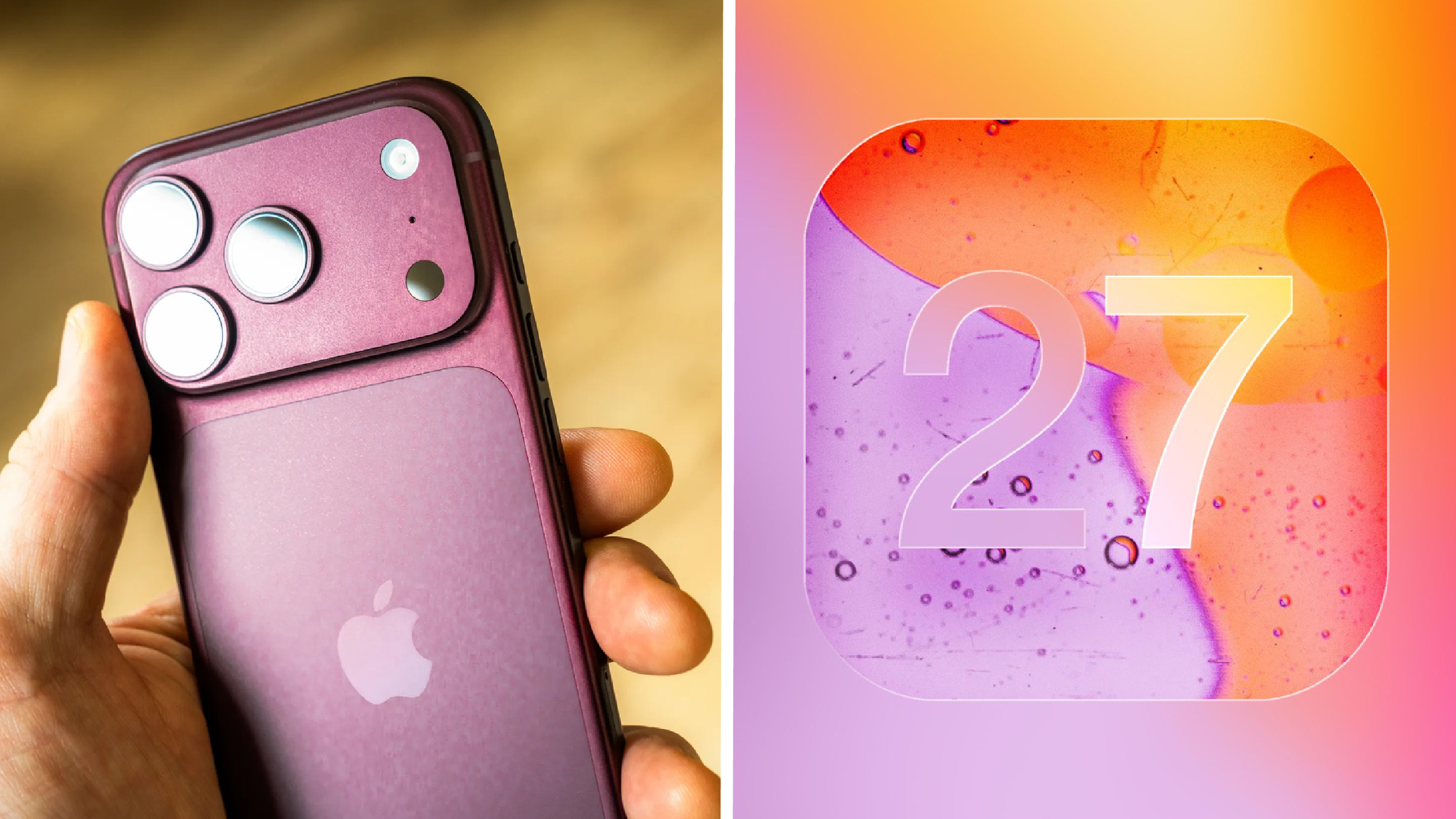
The iPhone has always been an easy choice to recommend to anyone looking for a smartphone with powerful components and long-term software support. However, recent iOS releases haven’t been as stable, experiencing some bugs and glitches.
Therefore, Apple focused on fixing bugs and improving overall stability in iOS 27, rather than adding a new set of showcased features.
The company dedicated a significant portion of its WWDC 2026 keynote to highlighting improvements such as faster app launch times, increased AirDrop file transfer speeds, and improved memory management.
As part of Apple’s commitment to providing long-term software updates, iOS 27 is compatible with the iPhone 11, which is good news for users who would otherwise have to settle for iOS 26 as their last major update, according to a report by Engadget reviewed by Al Arabiya Business.
The update can be installed by going to Settings > General > Software Update.
The interface didn’t undergo significant visual changes, which is understandable after Apple recently updated its design language with Liquid Glass.
However, the company did add a slider to control the transparency level across the entire system, a feature many users requested.
Battery life is a mixed bag of experiences; some users report a decrease in screen-on time compared to previous versions, while others haven’t encountered any noticeable issues.
For some users, the significant performance improvements on older devices, such as the iPhone 15 Pro Max, might make them more accepting of the slight decrease in battery life.
Beyond the stability and performance improvements, iOS 27 includes a number of practical additions worth exploring. Here are five key features to know about after updating your iPhone:
1- Creating Shortcuts with Apple Intelligence
Apple Intelligence didn’t get off to a great start. It took Apple two generations of iOS before it began delivering on its promise of a more advanced version of its Siri voice assistant.
Most of the tools in the AI suite haven’t offered significant practical value to users, with the exception of a few limited features like creating custom emojis via Genmoji. However, iOS 27 is changing this somewhat, as the Shortcuts app has received a major update, perhaps finally giving Apple Intelligence one of its most useful features.
iPhone users have been able to create shortcuts and automate complex tasks for some time, as well as import and share shortcuts created by other users. But iOS 27 now allows users to create shortcuts using natural language commands, which Apple Intelligence then understands and translates into actionable steps.
When the Shortcuts app is opened and the plus (+) button is tapped, users can begin describing the shortcut they want to create, and the system will automatically generate it.
Tests have shown that this feature works well in most cases, especially when creating simple and straightforward shortcuts. However, it can sometimes choose inappropriate actions, resulting in a shortcut that doesn’t perform the intended task accurately.
Nevertheless, shortcuts generated by Apple Intelligence can be manually edited by tapping the Edit option.
The feature isn’t limited to creating shortcuts; Apple Intelligence processes can also be integrated into them. Apple currently offers three AI models, including one that runs directly on the device to accelerate processing.
These models can be used to create shortcuts that include information extraction, content summarization, or the generation of text and documents. However, the Cloud and Cloud Pro models have a daily usage limit.
2- Creating Custom Cards in Apple Wallet
The Wallet app on iPhone is used to store payment cards, transit cards, event and movie tickets, digital keys, and other credentials.
Until now, adding digital cards has depended on the issuer supporting Apple Wallet and providing a compatible card.
While some companies and services have enabled this functionality, many others haven’t, preventing users from benefiting from it.
iOS 27 addresses this issue by allowing users to create custom cards and add them directly to Apple Wallet. This is a particularly useful feature for those with loyalty cards or gym memberships that don’t natively support Apple Wallet.
There are two ways to create these cards, the first of which relies on Apple Intelligence.
On compatible iPhone models, you can open a photo or screenshot of a ticket or membership card containing a barcode, then swipe up and tap Add Pass to Wallet to add it.
If this option isn’t visible, open the Wallet app, tap the plus sign (+) at the top of the screen, and then select Create a Pass.
After tapping Continue, you can take a photo of the ticket or ID. The Wallet app will then use Visual Intelligence to extract the relevant information from the image and create a digital card.
If you want to change the card’s details or design, you can tap Edit to make the necessary adjustments.
3- Siri Undergoes Major AI Upgrade
For years, Siri lagged behind competitors like Google Assistant. The problem wasn’t just its slow response; the assistant sometimes struggled to execute even the simplest commands.
Apple promised a major Siri overhaul as part of the Apple Intelligence suite introduced with iOS 18, but it took over two years to deliver on that promise.
Now, iOS 27 introduces Siri AI, giving users a more advanced version of the voice assistant.
Compatible iPhone users can join the waiting list to try it out by going to Settings, then Siri.
Although the new assistant is still in beta, the improvements are already noticeable.
Siri is now better at understanding and executing user requests, with significant improvements in handling follow-up questions related to the same conversation.
While processing most commands still takes some time, responses are now more contextual, and the assistant no longer relies as often on the traditional “Here’s what I found on the web” response.
But the most significant development in Siri AI is its ability to understand the user’s personal context.
It can now leverage information from messages, emails, photos, and more to answer questions or perform tasks that previously required manually navigating between different apps and searching for the necessary data.
While support for third-party apps remains limited, users who rely primarily on iMessage and the default iPhone email app may find Siri’s capabilities one of the most notable improvements in iOS 27.
The Camera app also received a new Siri-centric mode that utilizes Visual Intelligence to answer questions about objects the camera is pointed at.
4- Controlling AirPods Sound Quality
AirPods are among the most popular wireless earbuds on the market and perform best when paired with iPhones, iPads, and Macs.
Most modern models support Spatial Audio with head tracking, and music streaming services like Apple Music and Tidal offer Dolby Atmos audio.
Sound quality is one of the strongest features of these headphones, especially advanced models like the AirPods Pro 3.
But iOS 27 finally adds a long-awaited feature: the ability to customize the sound according to user preferences using a built-in equalizer.
Apps like Apple Music have long offered preset equalizer settings, but the new AirPods equalizer works system-wide, not within a specific music app.
This feature is available on AirPods 4 and later, AirPods Pro 2 and later, and AirPods Max 2.
To use it, connect your headphones to your iPhone, then open the Settings app, tap AirPods settings at the top of the screen, go to Audio & Routing, and then Equalizer.
The Recommended option is selected by default, providing a balanced sound level that users are accustomed to. However, by selecting Custom, you can manually adjust the low, mid, and high frequencies to suit your personal preferences.
If a user prefers a more powerful bass response, they can raise the volume of the bass level. For clearer voices, they can increase the mid-range or high-frequency levels.
While Apple only offers a three-band equalizer, this addition is a significant improvement. The AirPods Pro 2 already deliver powerful bass, but this new feature gives bass enthusiasts the opportunity to enhance it even further.
5- New Features in Safari
The latest version of Apple’s mobile operating system includes a number of enhancements that make browsing the internet easier and more convenient.
Among the most notable is the ability to set up alerts in Safari to keep track of changes to web pages, eliminating the need to constantly revisit them to check for updates.
This feature is useful for users who monitor product prices, wait for ticket sales to be released, or want to know when a sold-out product will be restocked.
To use it, open Safari on your iPhone and go to the webpage you want to monitor. Then, tap the three horizontal lines icon in the address bar and select “Notify Me.”
Since the feature relies on Apple Intelligence, you can specify what you want the browser to monitor by describing it in natural language and then choosing how often the page should be checked for changes.
Safari also uses Apple Intelligence to organize open tabs into groups based on their topics.
For example, if you’re preparing for an event and have several related pages open, the browser can group tabs for purchasing tickets, directions to the event venue, and parking information into a single group.
To enable this feature, open the tab view in Safari, tap the Sort button, and then select “Automatically Create Topics.”
Apple Intelligence also allows you to create custom extensions for Safari. Tap the three horizontal lines icon in the browser and then select “Describe Extension.”
Safari displays some examples of extensions that can be created, but users can also ask Apple Intelligence to build an extension that performs a specific task they define.
Initial tests have shown that some extensions created this way were able to perform the requested tasks well, although results may vary depending on the extension and the commands given.